Touch gestures in the schematic editor
These recordings show three ways to keep circuit editing direct on iPhone and iPad: fit the full schematic, connect two pins, and join contacts while moving a component.
- 01
- Available on iPhone and iPad
- 02
- Touch and pointer input
From canvas navigation to a connected circuit
Each gesture removes a separate interruption from schematic editing. The recordings are taken from the running Tersa app.
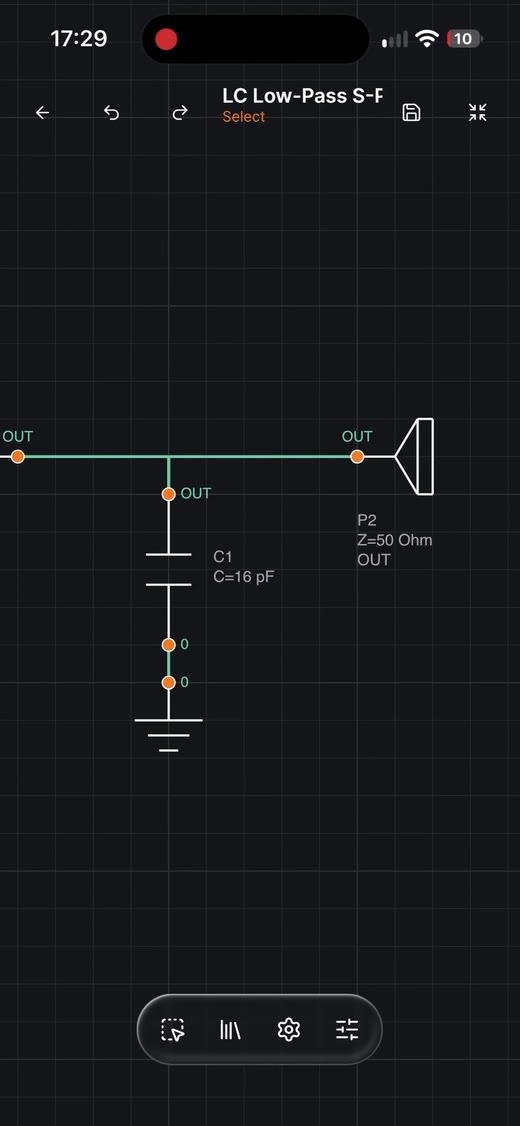
Fit the full schematic
Double-tap an empty area of the canvas.
The editor recalculates the viewport so every placed component and conductor is visible without manual pinching or panning.
The complete circuit returns to view.
Start and finish a wire
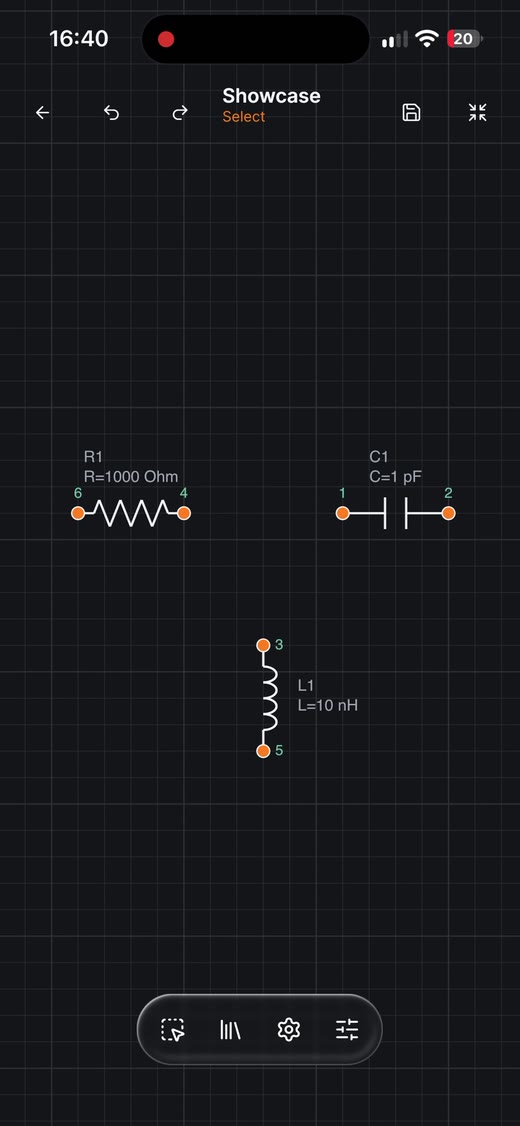
Double-tap a component, then tap the destination pin.
Connection mode exposes the available contacts. Selecting the target contact completes the conductor between the two pins.
A direct pin-to-pin connection is created.
Connect while moving
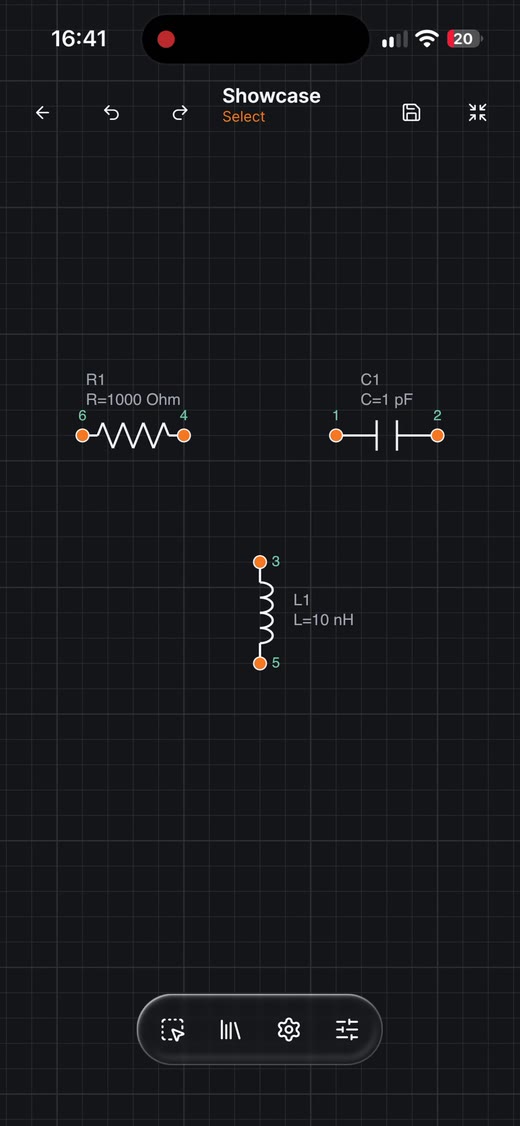
Drag a component until its contact overlaps another contact, then release.
When compatible contacts meet at release, the editor joins them and creates the conductor automatically.
Placement and wiring finish in one action.
Keep the circuit in context
Canvas framing, explicit pin connections, and contact-aware placement work together so the schematic remains readable while it changes.